Version 1.0.0.0 - for Dynamics 365 Business Central 24.0+
Purchasing integration
Export exactly the purchasing data Tacto needs, straight from Business Central - without writing a line of code.
Tacto connect acts as an export assistant for Dynamics 365 Business Central: you decide once which tables and fields matter, and from then on every run reads your purchasing, vendor, item, and price data and writes it into structured CSV files for Tacto.
The app is read-only - it never modifies your Business Central data - and ships pre-configured with the most common purchasing tables already enabled, so a first export can be produced within a minute of installation.
Tacto connect only reads Business Central to build the export files - your live data is never changed. Communication with Azure Blob Storage always uses encrypted HTTPS connections, and the client secret you enter is stored in an encrypted, protected area rather than in an ordinary database field.
Value
Why choose Tacto connect?
Keep your Tacto data feed aligned with your purchasing processes instead of building one-off exports outside Business Central.
Filters stack to shape exactly what leaves BC
Table selection, static field filters, the date filter, and the item-reference filter all combine with logical AND. A purchase line, for example, is exported only if it isn't a comment line, falls inside your date window, and belongs to an item you actually buy - so Tacto receives a focused dataset instead of your entire purchasing history.
Choose the right handoff
Support both manual and automated delivery models. Business users can download a ZIP immediately, while most customers automate the whole handoff end-to-end by combining Azure Blob Storage with a scheduled Job Queue Entry.
Stay adaptable
The export model is data-driven. Table setup and field selection can be maintained from dedicated pages, and the default configuration can be rebuilt at any time with Reset System Defaults or a Full Reset.
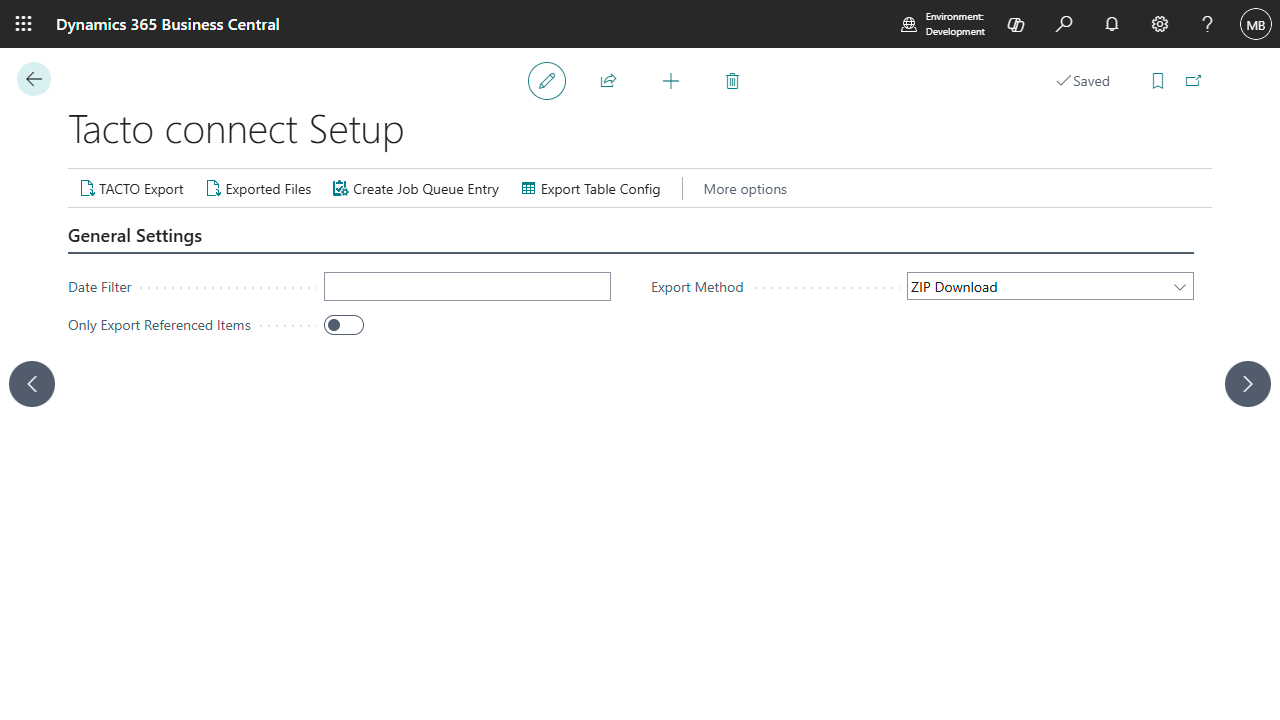
The Tacto connect Setup page - the starting point for every export.
Configuration-first
Default table and field definitions are inserted automatically during installation, so a complete export can be produced within a minute - no manual setup required.
Admin-controlled scope
Table entries, field order, Azure credentials, blob folder, and export path are all maintained from the setup experience.
CSV staging included
ZIP and Azure workflows stage generated files in an internal export table before download or upload.
Capabilities
What the product delivers
Tacto connect combines configurable data extraction, delivery options, and a lightweight admin workflow directly inside Business Central.
A dedicated Tacto connect Setup page centralizes the export date filter, the temporary-table option, the export method,
local storage settings for on-premises installations, and all Azure Blob Storage credentials and target parameters.
The visible fields adapt automatically depending on whether the environment is SaaS or on-premises.
Export tables are not hard-coded into the execution flow either: administrators can open the Export Table Setup
page, add or remove tables, define file names, open the field list for each table, and reorder the exported fields,
keeping the generated CSV structure aligned with the target Tacto import model.
ZIP Download
Generates all configured CSV files, packages them into a ZIP archive, and downloads the archive to the client - the simplest option for a manual handoff.
Azure Blob Storage
Uses OAuth2 client credentials to upload generated CSV files directly into the same Azure Storage container Tacto reads from - the method most customers use day-to-day, since it requires no manual intervention.
Local Storage
Available in on-premises environments only. Writes each CSV file directly to a server path defined in setup - well suited to organizations whose own middleware collects the files from a shared folder.
SaaS and on-premises
Tacto connect supports both Business Central Essentials and Premium. In SaaS, users can work with ZIP Download or Azure Blob Storage. In on-premises deployments, Local Storage is available in addition to those methods.
Questions & answers
Frequently asked questions
Which data is exported by default?
The shipped configuration covers 25 tables, including items, vendors, contacts, purchase documents, posted purchasing documents, pricing, shipment methods, payment terms, locations, and related supporting master data. You can adjust the scope later in the export table and field configuration pages.
Does Tacto connect modify my Business Central data?
No. The extension is read-only: it only reads records to build the export files. Your live data is never changed.
Can I export only the items we actually purchase?
Yes. Enable Only Export Referenced Items on the setup page. The extension then scans your purchasing documents and limits items, item prices, and item variants to the ones that actually appear on them.
Can I change the CSV column order?
Yes. Open the field list for a configured table and use Move Up or Move Down to reorder the exported fields. The CSV header and data rows follow that configured sort order.
Does Local Storage work in SaaS?
No. The extension explicitly blocks Local Storage in SaaS environments. It is available only in on-premises deployments.
What should I do if Azure upload fails?
Verify the Azure App ID, Client Secret, Tenant ID, account name, container, and optional blob folder. Then run Azure Connection Test first. Also make sure HttpClient requests are allowed for the extension in Business Central.
Whether you have technical questions, need guidance during your rollout, or want to share feature requests, our dedicated Dynamics 365 Business Central team is ready to assist you. Drop us a message, and we will ensure you get the absolute most out of our apps.